
How to Use v2RayTun on Android
Have your configuration ready? Import it, choose a profile and start your connection. This guide takes you through the first setup and the checks to try if browsing does not work.
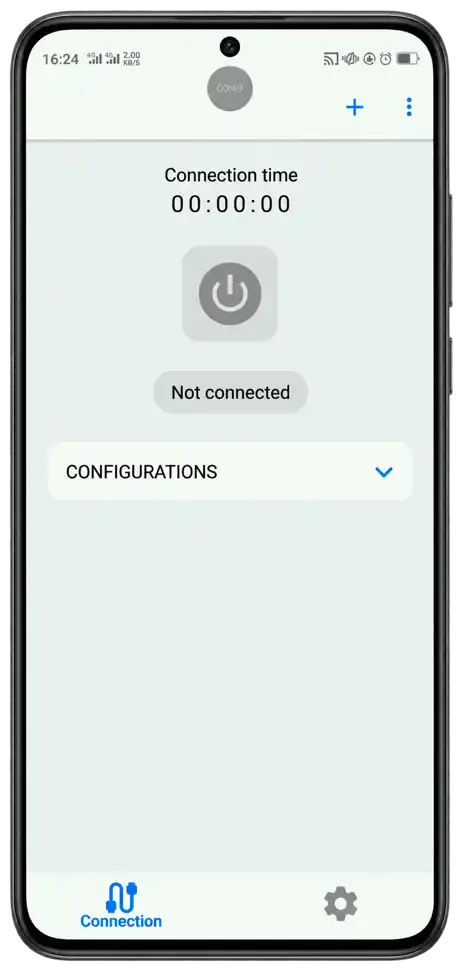
v2RayTun Setup Requirements
- Install the Android app on a device running Android 7.0 or newer.
- Have a working internet connection.
- Get a compatible configuration, QR code or subscription from your server administrator or provider.
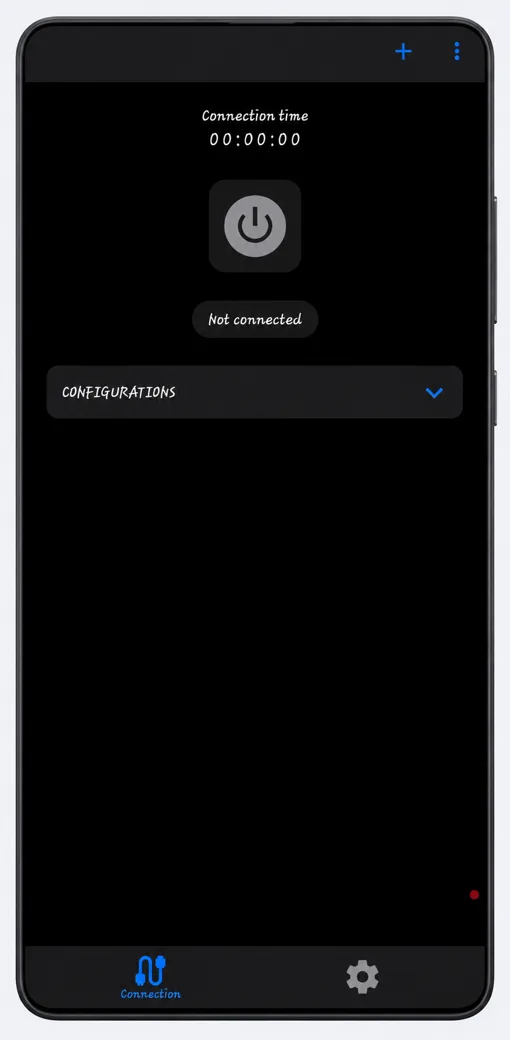
The app manages connections; it does not supply ready-made servers. An empty configuration list on a fresh installation is expected. You do not need to change advanced settings just to make that list appear.
Adding a Configuration to v2RayTun
- Copy the complete configuration value supplied for your account.
- Open the app and tap the plus button.
- Choose the clipboard import option, or the QR option if you have a code.
- Check that the imported profile appears in the configuration list.
Use the option that matches what you received. A single profile describes a connection; a subscription can provide several entries. Menu wording may vary with your app version.
If your provider offers an import link that opens the client, review the app it launches and check the resulting profile before connecting. If Android does not open the expected app, return to the clipboard method rather than repeatedly tapping the same link.
If nothing appears, copy the value again without introductory text or missing characters. A website's home address is not necessarily a configuration or subscription URL.
Selecting a Server and Connecting
- Open the configuration list and select the profile you want.
- Tap the power or connection button.
- Read Android's VPN connection prompt and approve it to continue.
- Wait for the connection status to change, then open a website.
Test a page you can normally reach before trying several apps. If the page loads, check the particular app you want to use next. A connection timer alone does not confirm that every destination is reachable.
If several entries have similar names, check the selected row each time you switch servers. Disconnect, choose the other entry and reconnect before comparing the result. This makes your test clearer than changing both the profile and several settings together.
To stop the connection, return to the same control and disconnect. If another VPN app is running, stop it before testing this one so you know which connection your phone is using.
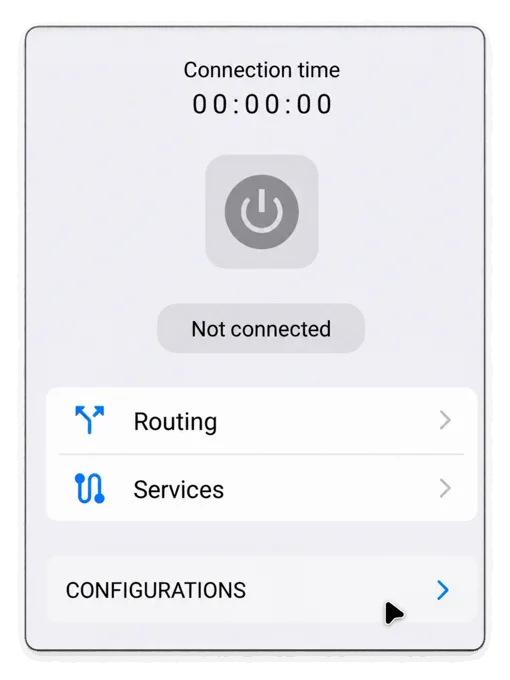
Subscriptions and Routing Settings
- If you use a subscription, refresh its list when your provider changes servers.
- Choose a current entry and test it before editing transport or security fields.
- Review routing only if you need different behavior for particular traffic.
- Keep a secure copy of the details needed to restore your setup.
Before replacing a subscription address, make sure you still have the old one saved somewhere private. If the new list is empty, check the spelling, your normal internet access and the status of your account. Avoid deleting a working setup until you have confirmed its replacement.
A refresh retrieves profile information. It does not extend an expired plan or guarantee that an unavailable server will return.
Change one setting at a time. If a routing change causes a particular app to lose access, undo it and test again. Keep subscription addresses and credentials out of public screenshots.
Fixing a Connection That Will Not Work
Import Fails
- Copy the full value again.
- Check whether it is a profile or subscription.
- Ask the provider whether it is still valid.
Connected, No Browsing
- Test the internet with the tunnel off.
- Try another supplied profile.
- Undo recent DNS or routing changes.
Background Disconnects
- Try with the app open.
- Review battery restrictions.
- Check for another active VPN app.
Before reinstalling, save your connection details and note the exact error. Removing the app can remove its local settings, and a fresh installation will not repair an expired account or an offline server.
Your First Working Connection
Start with one valid profile and leave its imported settings unchanged. Once browsing works, add the other entries or routing choices you need. Return to the download and app overview for the package details.