v2RayTun APK
Your proxy profiles, server connections and traffic settings. Together in one Android app.
v5.26.83 · Android 7.0+ · 54.0 MB

ANDROID PROXY CLIENT
What Is v2RayTun?
v2RayTun is a proxy client that connects your Android device to a server you configure. You add a connection profile, select it and start the connection from the app. It gives you one place to manage the details instead of entering them every time you want to connect.
The important part comes before that first tap: you need a working configuration or subscription. Installing the app alone does not give you a server, an account with a provider or a ready-to-use internet connection.
If someone has already supplied your connection details, you can start with an import. If you manage your own server, use the matching settings from that server. Keep the first setup simple and confirm that one profile works before exploring the advanced options.
v2RayTun APK: Version and Requirements
Check your Android version before installing. This download is a universal package; the app and your server subscription are separate things.
| Detail | Information |
|---|---|
| Application | v2RayTun |
| Version | 5.26.83 |
| Platform | Android 7.0 and above |
| Package | APK · Universal build |
| File size | 54.0 MB · 51.5 MiB |
| Package ID | com.v2raytun.android |
| Connection | Your own compatible server or subscription |
| Other devices | Separate platform-specific apps; this file is for Android |
v2RayTun App Screenshots
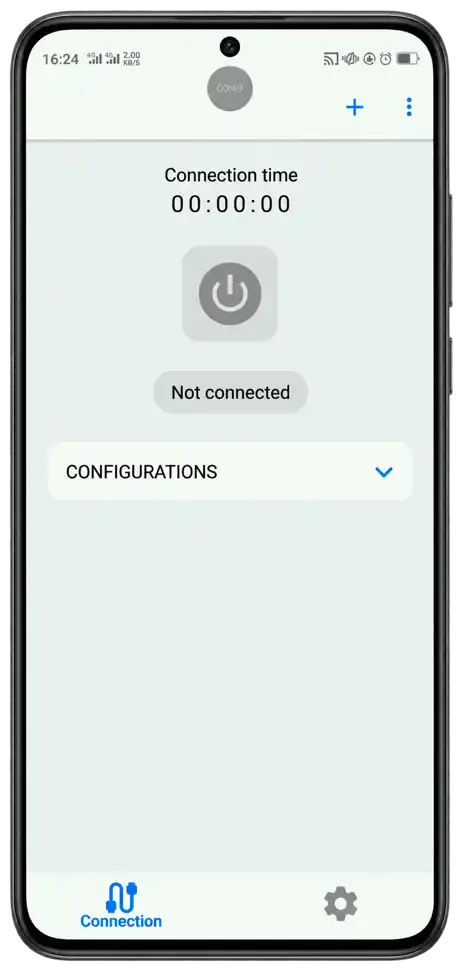
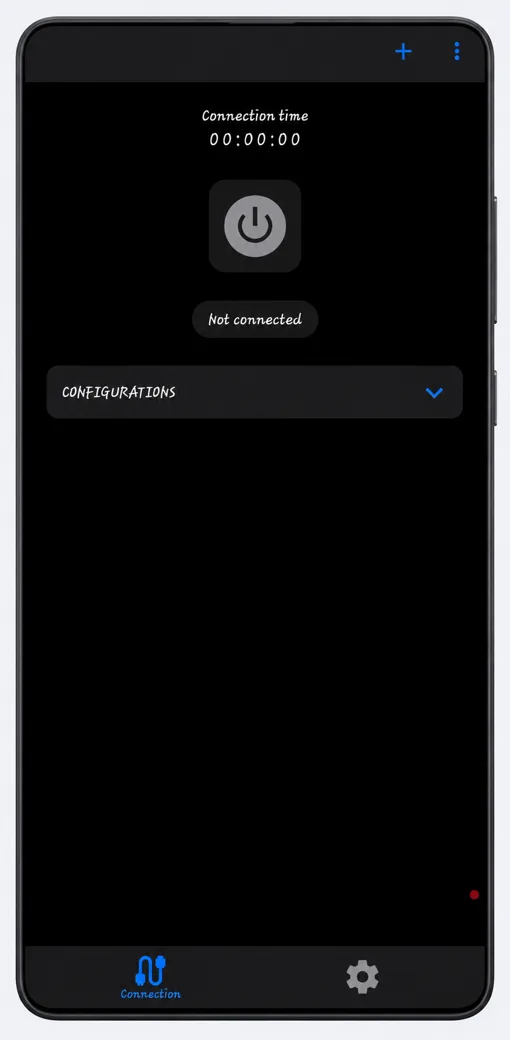
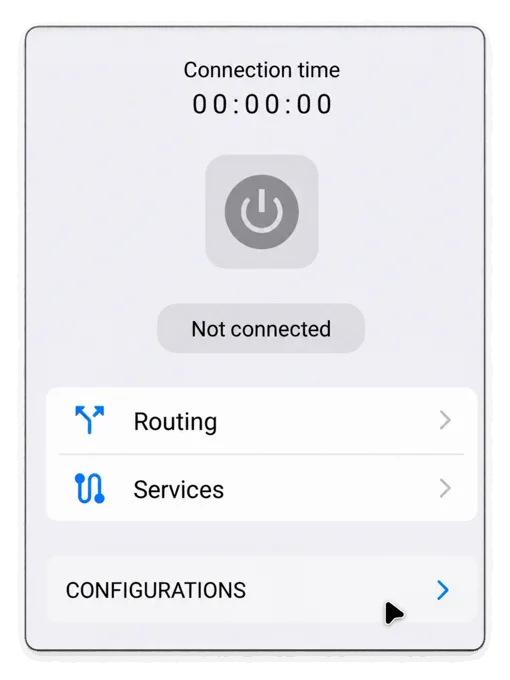
A closer look at the connection controls and configuration list. Appearance and labels can vary between releases.
V2RAYTUN FEATURES
Connection Tools in v2RayTun
Start with a profile, then use the controls that fit your connection.

Several Proxy Protocols
The client supports VLESS, VMess, Trojan, Shadowsocks and SOCKS. These are different ways of describing and handling a proxy connection. Choose the one your server actually uses, rather than picking a name because it sounds faster.
A protocol mismatch can stop a connection before it starts. Importing the complete profile is usually easier than rebuilding every field by hand.

Configuration Imports
You can import connection details using a QR code, the clipboard or a compatible deep link. That saves you from typing a long address or identifier on a small screen.
Copy the complete configuration without extra text. A normal web page address and a server configuration are different things, even if both look like links.

Clear Connection Controls
The connection screen brings the selected profile and start/stop control together. Check which entry is selected before tapping the power button, especially when you have several similar server names.
After connecting, try loading a page. A running timer is useful feedback, but a real browsing check tells you whether the connection is doing what you need.

Xray and Reality Support
The app supports Xray-based configurations, including Reality. When your profile uses extra security or transport fields, those values need to match the server.
Leave working imported settings intact. Random changes to a server name, key or transport can make a valid configuration stop connecting.

Subscription Management
A subscription can keep several server profiles together. Refreshing it lets the app retrieve the list your provider currently supplies, rather than leaving you with only an older saved copy.
Updating that list does not renew a paid plan or fix an expired account. Check those details with the service that supplied your subscription.
Routing and Traffic Settings
Routing decides which traffic follows a particular path. If your setup needs different treatment for certain apps or destinations, review the available routing controls after the basic connection works.
Make one change at a time and test the affected app. Keeping a known working profile makes it easier to undo a change that breaks your connection.
How to Install v2RayTun on Android
You can install the Android package without rooting your device. Finish the download before opening the file, and keep your connection details nearby for the next step.
1. Install the Android App
- Tap Download for Android and wait for the APK to finish saving.
- Open the file from your browser or Downloads folder.
- If prompted, allow that browser or file manager to install unknown apps.
- Review the installation prompt and tap Install.
- Open the app once Android finishes installing it.
You can turn the install permission off again afterwards. If the installer reports a conflict, check the error before removing an existing installation and losing its saved settings.
2. Add Your First Connection
- Copy your complete configuration or have its QR code ready.
- Tap the plus button and choose the matching import method.
- Check that a profile appears in the configuration list.
- Select the profile, then tap the connection button.
- Approve Android's VPN connection request when it appears.
Open a page to check the result. For a more detailed walkthrough, follow our Android setup guide.
Configurations, Subscriptions and Server Details
A single configuration describes one connection. A subscription usually points to a collection that can be refreshed. Ask the person or service supplying your access which type they have given you, then use the appropriate import option.
Keep these details private. A configuration can contain credentials, and a subscription address may grant access to your account's server list. Avoid posting either one in screenshots when asking for help.
Understanding the Connection Details
A profile can include a server address, port, user identifier, transport and security settings. These values belong together. Changing just one field to match another tutorial can leave you with a combination your server does not accept.
If your provider gives you several locations, test the ones included in your own account. A nearby location may be a useful starting point, but distance alone does not determine speed. Server load and the network you are using matter too.
Checking a New Profile
- Confirm that the imported entry has a recognizable name.
- Select it and try connecting without editing advanced fields.
- Open a website, then test the app you actually want to use.
If browsing fails, try a second working profile if you have one. This helps separate a single server problem from a wider device or network issue.
Saved Profiles and App Updates
Before reinstalling or moving phones, keep a secure copy of your configuration details or subscription address. Do not assume that having the app installed on another device also transfers its profiles.
- Make sure you can recover your connection information.
- Install a compatible update over your current app where possible.
- Open the app and test one profile after updating.
If an update will not install, check the package, available space and exact Android error. Uninstalling first can remove local app data, so save what you need before taking that step.
Common v2RayTun Connection Problems
No Configurations Are Showing
An empty list is normal on a fresh installation. Add a compatible profile or subscription first. If an import fails, check that you copied the complete value rather than a shortened link or surrounding message.
The App Connects but Pages Do Not Load
Check your ordinary internet connection with the tunnel off, then reconnect. Try another profile, review subscription expiry and look at any routing or DNS changes you recently made. Reinstalling will not repair an unavailable server.
Only One App Cannot Connect
Check whether the problem follows that app or affects the whole phone. If other pages load, review any rules that exclude the affected app or send it directly. Test with your ordinary connection too, so you do not mistake an app outage for a tunnel problem.
The Connection Stops in the Background
Test with the app open, then check Android's battery and background restrictions. Also check whether another VPN app is taking over the connection. Change one setting at a time so you can tell what helped.
v2RayTun APK FAQs
 Does v2RayTun Include Free Servers?
No ready-made server access comes with the client. You need to supply a compatible configuration or subscription before you can connect.
Can I Install This APK on an iPhone?
No. APK files are for Android. Other platforms use their own app versions and installation methods.
Which Protocol Should I Choose?
Use the protocol specified by your server or provider. The available options include VLESS, VMess, Trojan, Shadowsocks and SOCKS.
Why Does Android Ask for VPN Permission?
The permission lets the app create a VPN connection on your device. Review the prompt and allow it when you are ready to use your configured server.
Will a New APK Renew My Subscription?
No. An app update and a subscription renewal are separate. If access has expired, installing another package will not restore that account.
Getting Started With v2RayTun
Install the compatible Android package, add your connection details and get one profile working first. From there, you can organize more servers and adjust routing as your needs change. Keep a recoverable copy of your details so an update or a new phone does not mean starting again.